50+ Easy Pixel Art Ideas You Can Create Today
Pixel art has a certain magic to it; a few well-placed colored squares can create a whole world full of little video-game-style pixels, a beloved sticker, or even a surprisingly detailed painting, all made with just a minimum of effort. If you have ever struggled with a blank grid, looking desperately for ideas to fill it with, this tutorial is going to help you.
Below, you will find dozens (more than 50!) of different pixel art ideas, sorted by difficulty level and themes, some useful tips and tricks for working with pixels, and some common mistakes to avoid. This tutorial will help you both get started and find inspiration if you are already a pixel art veteran, looking for new ideas to try.
Why Pixel Art Is a Great Starting Point for Digital Art
Pixel art imposes constraints, and it’s those constraints that make it accessible. You don’t have to think about mixing brushes or lighting effects right away; you think about how you’re going to fit everything into a grid system and limited palettes, which is easier to approach.
- Mistakes are easy to fix (just click a square and change it)
- Small canvases mean projects finish faster.
- The style rewards simplicity, so “good enough” often looks genuinely good.
- It’s one of the few art styles where a total beginner and an experienced artist can both enjoy the process.
This is why pixel art has persisted since the dawn of computer/console graphics and has not disappeared to this day. Pixel art is an accessible, satisfying medium for anyone to use, even with no artistic experience.
What You Need Before You Start

You don’t need a drawing tablet, though one helps. A mouse and a grid-based art program are genuinely enough to make solid pixel art. Here’s the short list:
- A pixel art program (see the software section below)
- A small canvas size to start, something like 16×16 or 32×32 pixels
- A limited color palette, ideally under 8 colors for your first few pieces
- Reference images, even rough ones, to guide shapes and proportions
That’s it. No expensive setup required.
Best Pixel Art Software (Free and Paid Options)
If you’re searching for pixel art ideas software, the good news is that some of the best tools cost nothing. Here’s an honest breakdown, not a generic “top 10” list, but a practical comparison based on what each tool is actually good at.
| Software | Price | Best For | Learning Curve |
| Piskel | Free (browser-based) | Beginners, quick sprites, GIF animation | Very low |
| Aseprite | Paid (one-time fee, ~$20) | Serious pixel artists, game development | Moderate |
| GIMP | Free | People who already use GIMP for other art | Moderate to high |
| Krita | Free | Artists who want pixel art alongside painting tools | Moderate |
| Pixilart | Free (browser-based) | Social sharing, community feedback, mobile use | Very low |
| LibreSprite | Free (open-source fork of Aseprite) | Aseprite’s features without the price tag | Moderate |
Best pixel art software free options, ranked by practicality
- If you’re looking for good, free pixel art software with no strings attached, give Piskel or Pixilart a try. Both editable options are purely browser-based and don’t require any installations, making it easy to make some publishable pixel art for a sprite, sticker, or even a social media post. LibreSprite merits consideration as well as a viable alternative to Aseprite that also has a similar toolset, albeit less polished and less frequently updated.
- However, Aseprite is worth mentioning if only due to its status as a standard in the industry. If one’s hobby aspires to greater things, the one-time buy is a relatively small investment. Aseprite’s tools are intuitive, and the software has a reputation for being easy to learn without shallow depth. It is, in short, the perfect medium to evolve as a pixel artist.
- One should also note that prices and conditions may change, so it’s always best to check the sites mentioned above for the most up-to-date information before making any financial commitments, especially for Aseprite’s standard fee and any possible subscription renewals for Adobe and other browser-based tools.
Computer Art Websites Worth Bookmarking
Beyond software, there are computer pixel art ideas websites that support pixel art specifically, whether for learning, sharing, or finding inspiration:
- Lospec is arguably the most useful site for pixel artists specifically. It hosts a huge library of color palettes designed for pixel work, plus tutorials and a pixel editor.
- Pixilart’s community gallery is useful for seeing what other beginners are making, which can be more motivating than looking at professional portfolios.
- itch.io is where a lot of pixel art ends up if you make game assets, and browsing asset packs there is a good way to study how professionals structure their sprites.
- DeviantArt still has an active pixel art tag, useful for older tutorials and long-form breakdowns of technique.
A quick tip: when browsing these sites for inspiration, don’t copy what you see pixel-for-pixel. Use them to understand why a piece works (color choice, shading, silhouette) rather than tracing the outcome.
50+ Pixel Art Ideas, Organized by Category
Here’s the core of the pixel art ideas guide. These ideas are grouped so you can pick based on your mood, skill level, or the time you have available.
Cute Easy Pixel Art Ideas (Perfect for Beginners)
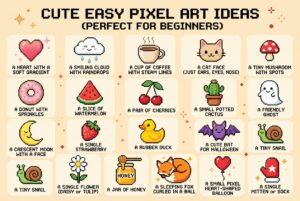
These are ideal if you want a satisfying result in under 30 minutes.
- A single heart with a soft gradient
- A smiling cloud with raindrops
- A cup of coffee with steam lines
- A cat face (just ears, eyes, and a nose)
- A tiny mushroom with spots
- A donut with sprinkles
- A slice of watermelon
- A pair of cherries
- A small potted cactus
- A friendly ghost
- A crescent moon with a face
- A single strawberry
- A rubber duck
- A cute bat for Halloween
- A tiny snail
- A single flower (daisy or tulip shape)
- A jar of honey
- A sleeping fox curled in a ball.
- A small pixel heart-shaped balloon
- A single mitten or sock
Nature and Scenery

Good for practicing color transitions and simple backgrounds.
- A sunset over hills (3-4 color gradient)
- A pixel forest silhouette
- A single tree changing with the seasons (make four versions)
- A starry night sky
- A beach with waves
- A mountain range at dawn
- A single lily pad with a frog
- A campfire scene
- A rainy window with a blurred background
- A field of flowers from a bird’s-eye view
Food and Drink

Food sprites are popular because they’re small, colorful, and satisfying.
- A slice of pizza
- A bowl of ramen
- A cupcake with frosting
- A taco
- A glass of lemonade
- A stack of pancakes
- A sushi roll
- A bag of popcorn
- An ice cream cone
- A gingerbread cookie
Game-Inspired Sprites
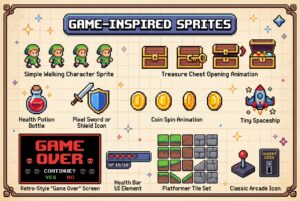
If your interest in pixel drawing comes from gaming, these are a natural fit.
- A simple walking character sprite (front-facing, 4 frames)
- A treasure chest opening animation
- A health potion bottle
- A pixel sword or shield icon
- A coin spin animation
- A tiny spaceship
- A retro-style game “Game Over” screen
- A health bar UI element
- A simple platformer tile set (grass, dirt, stone)
- A pixel art version of a classic arcade icon (joystick, coin slot)
Icons and Everyday Objects

Great for practicing clean lines and functional design.
- A camera icon
- A vinyl record
- A pair of headphones
- A book with a bookmark
- A retro television
- A pixel art keyboard key
- A light bulb
- A backpack
- An umbrella
- A pixel art wristwatch
You don’t need to work through this list in order. Pick whatever sounds fun today. The goal is momentum, not a checklist.
How to Actually Start Drawing: A Simple Process
Having ideas is one thing. Turning them into finished pixel art is another. Here’s a process that works whether you’re making a cute, easy pixel art piece or something more complex.
Step 1: Sketch the silhouette first
Before adding any colors, make the basic silhouette using a dark color. This decides what the object is at first glance, which is more important in pixel art than most other styles because you have to work with few pixels to convey what it is.
Step 2: Choose a limited palette
Three to six colors is plenty for most small pieces. Sites like Lospec offer premade palettes if choosing colors from scratch feels overwhelming.
Step 3: Add your base colors
Fill in flat colors first. Resist the urge to add shading yet.
Step 4: Add one light source
Pick a direction (usually top-left or top-right) and add a slightly lighter shade where light would hit, and a slightly darker shade where shadow would fall. Two shading tones are enough for small pieces.
Step 5: Clean up the edges
Zoom in and look for pixels that stick out. Getting rid of them really helps the piece to stand out. Just a note: this isn’t the only way to make pixel art.
Step 6: Export and share
Most pixel art ideas apps will let you export as a PNG easily, and if you’ve been doing a sprite animation, there’s probably a GIF export function for the whole animation (Piskel does it really well).
Common Mistakes Beginners Make
- These are some common mistakes that I’ve noticed new pixel artists tend to make, and they could help prevent frustration.
- Having too many colors. Using a lot of colors doesn’t really help pixel art become more appealing, only more messy. Try starting more limited.
- Making things too small too early. 16×16 is very small for pixel artists, and could cause frustration when trying to make fine details with limited space. Try 32×32 for your first few pieces.
- Not silhouetting. You should always check and see how it looks with no colors but black, because if you can’t make a good silhouette, then adding colors won’t fix it.
- Using too much anti-aliasing. While it may make the picture look nicer, some pixel art looks better with less smoothing, and a little more blocky.
- Not zooming out and seeing your work regularly. It’s normal for pixel artists to do most of their work zoomed in, but it’s important to step back and see how it looks at a more realistic, actual size.
Final Thoughts
Pixel art is all about patience. If you take the time to create a neat little heart or mushroom, using minimal shapes and colors, it will look better than a thousand garish hastily-swept pixels. Use pixel art ideas as inspiration rather than rules -and, most important of all, don’t overcomplicate things!
Frequently Asked Questions(FAQs)
Is pixel art hard to learn?
Pixel art ideas is one of the easiest digital art styles to learn, as the grid and reduced color palette all but eliminate common barriers to entry that one may encounter in other mediums. One may need to do some practice building their understanding of color and shading, but simple pieces can be made right away.
What size should my canvas be as a beginner?
32×32 or 64×64 pixels is a good size for a beginner, as it limits the amount of detail you can put into a piece while still not taking too long to complete.
Do I need a drawing tablet for pixel art?
Not necessarily, as one can use a mouse to create pixel art, as opposed to other digital art styles where one may need a stylus for pressure sensitivity.
What’s the difference between low-resolution digital art and pixel art?
Digital pixel art ideas that has been low-pass filtered to a lower resolution loses much information in the process and would not be considered pixel art anymore, as the latter is much more reliant on individual pixels and their colors being precise.